How to use the IDE ?
What is Bitquery IDE?
The Bitquery IDE serves as your gateway to explore and access data from our APIs. This interactive platform provides a visual interface for both V1 and V2 of our APIs.
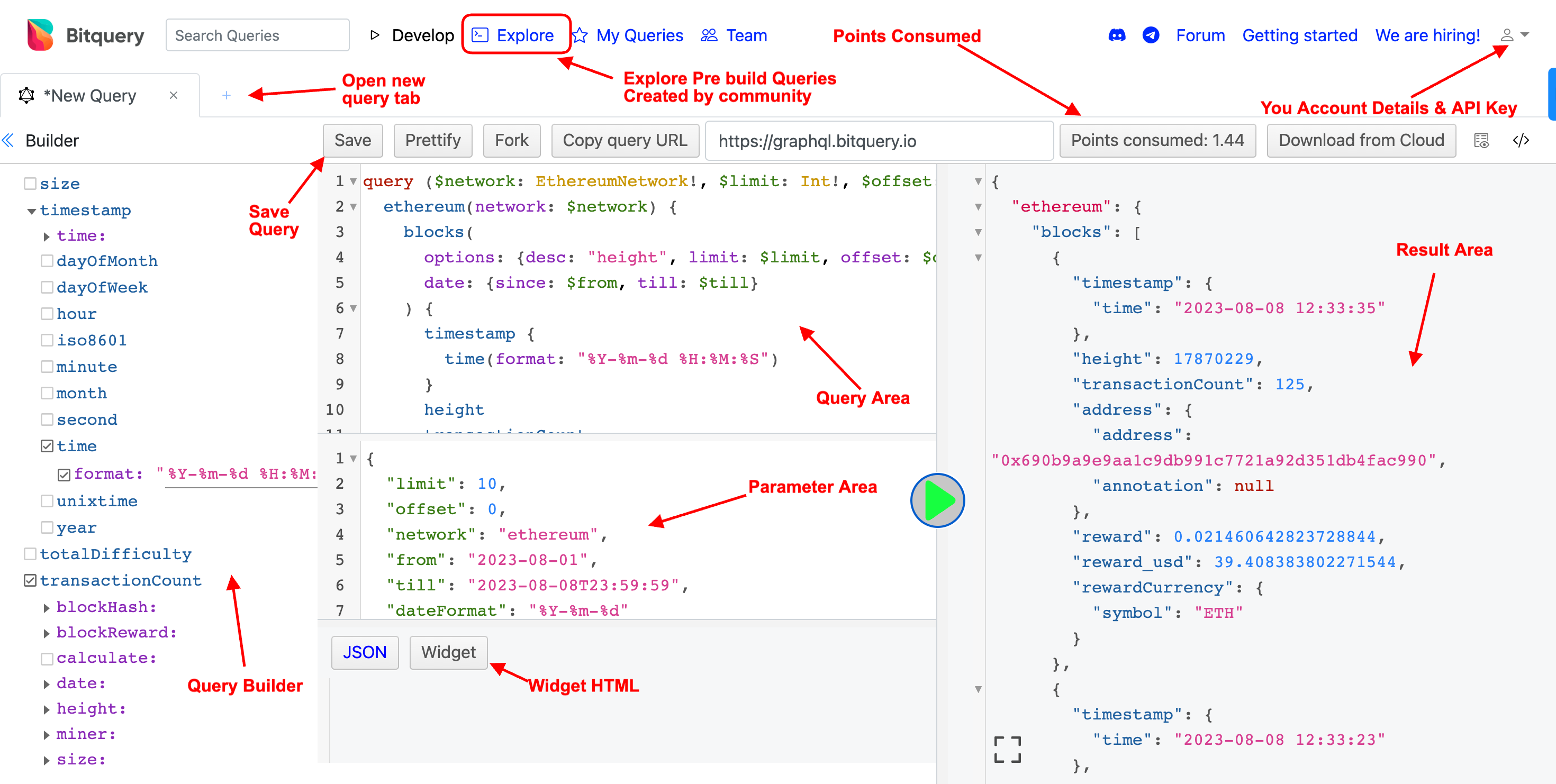
How IDE can help build query?
Whether you're new to GraphQL or already familiar with it, the IDE allows you to construct queries in two ways:
- Query Builder: Leverage the built-in Query Builder to build your queries.
- Writing Query: If you're well-versed in GraphQL, you can directly write your query within the query area.
If you're new to GraphQL or our APIs, the Query Builder within the IDE offers a user-friendly approach to understanding and creating queries. You can find a step-by-step guide on how to create queries using the Query Builder here.
How can I save and share queries using IDE?
Should you wish to save or share your queries, follow these steps:
- Click the "Save" button located above the query area.
- Provide a name and description for your query.
- Select the desired visibility setting for your query.
- Click "Save" to save your query for future use or sharing.
How do you get my OAuth Token using Bitquery IDE?
You can get your Access Token from your account dashboard under the "Access Tokens" section. Here's how:
- Click the rightmost person icon in the navbar of IDE to access the dropdown menu.
- Choose "Account" to access your dashboard.
- Navigate to the "Access Tokens" section.
- Copy your Access Tokens for integration into your application.
Can I buy Bitquery subscriptions using IDE?
In your Account Dashboard, find the "Billing" section. Here, you'll find the "Buy Subscription" button. Upon clicking it, you'll see available subscription plans.
Choose the plan that aligns with your needs. Select the "Automatically renew every month" checkbox and proceed by clicking "Select." Follow the subsequent steps to finalize your subscription transaction.
My API stats and points consumption using IDE.
On first section of your account dashboard, "Account" section, you'll find an overview of your current billing period. This includes information about points consumed and API calls made.
For historical data pertaining to points consumed and API calls, navigate to the "API Usage" section on your dashboard.
How to see queries which used a lot of points in my account?
You can find which queries have consumed substantial points within the "Queries" section of your dashboard.
What if I don't want to use IDE?
If the IDE isn't your preferred route, you can still directly access our API from your application using your Access Token.