Step-by-step guide on using the Bitquery API with WPGetAPI on WordPress
Prerequisites:
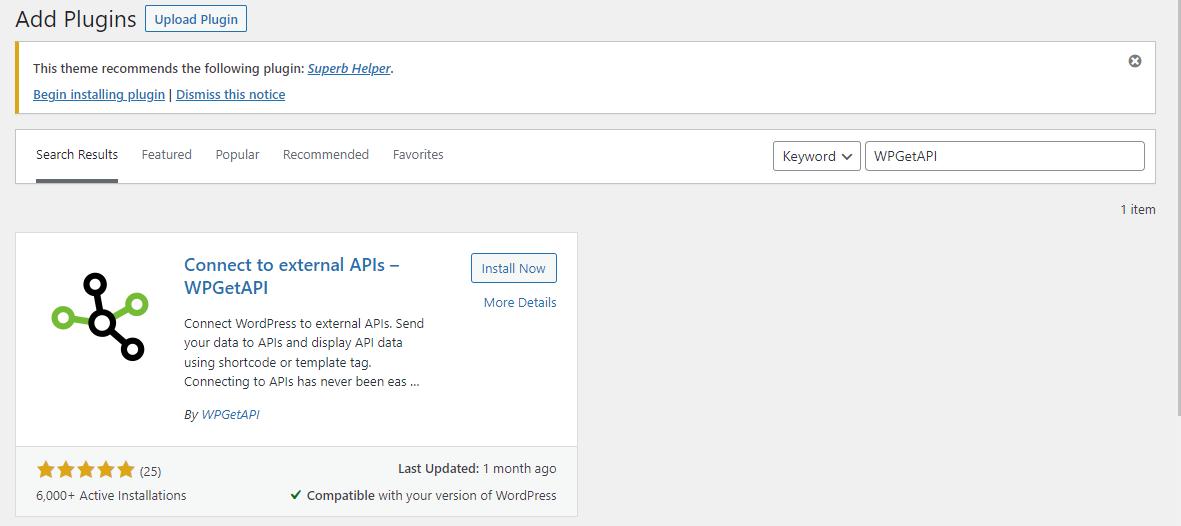
- A WordPress site with WPGetAPI plugin installed and activated.
- A Bitquery account and API Key.
Steps
- Create New API
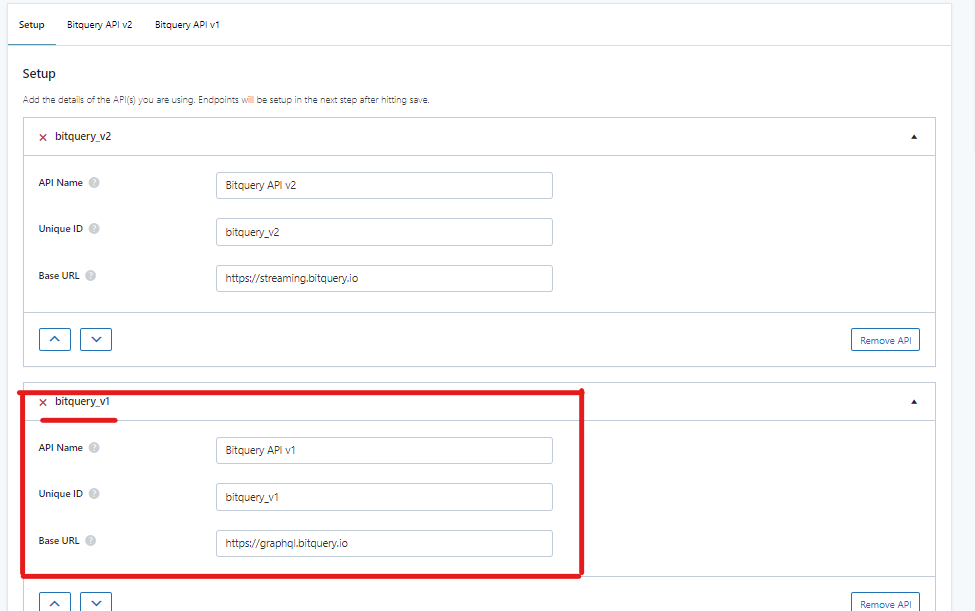
In the WordPress admin dashboard, go to "WPGetAPI" > "Setup". Now add the endpoint details inlcuding API Name of your choice, Unique ID, and base URL.
The base URL is set to "https://graphql.bitquery.io"
- Setup Query
Now navigate to the tab with the endpoint. Set
-
Endpoint:
/ -
Method:
POST -
Results Format:
JSON string -
Headers:
Content-Type: application/jsonAuthorization: 'Bearer ory_at_...'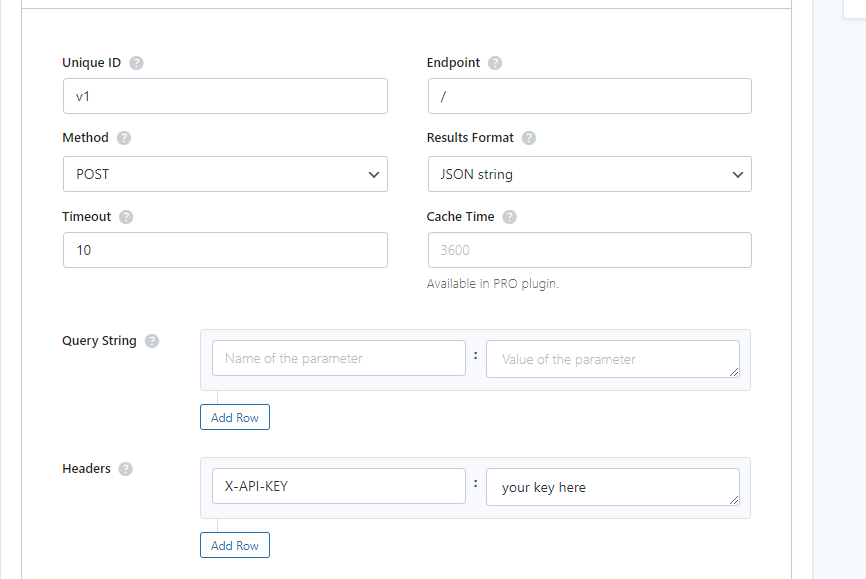
-
Body
Set key: query value: your query, for example
{
  ethereum(network: bsc) {
    dexTrades(
      options: {desc: "block.height", limit: 1}
      makerOrTaker: {is: "0xeF1F0eB4e392a45986D7cE889C95c086FB170E1e"}
      exchangeName: {in: ["Pancake", "Pancake v2"]}
      date: {after: "2021-04-28"}
    ) {
      transaction {
        hash
      }
      smartContract {
        address {
          address
        }
        contractType
        currency {
          name
        }
      }
      tradeIndex
      date {
        date
      }
      block {
        height
      }
      buyAmount
      buyAmountInUsd: buyAmount(in: USD)
      buyCurrency {
        symbol
        address
      }
      sellAmount
      sellAmountInUsd: sellAmount(in: USD)
      sellCurrency {
        symbol
        address
      }
      sellAmountInUsd: sellAmount(in: USD)
      tradeAmount(in: USD)
      transaction {
        gasValue
        gasPrice
        gas
      }
    }
  }
}
Finally set
-
Encode Body:
JSON Encode -
Click on
Test Endpointbutton at the top to run the plugin. You will then see the output displayed below as shown in the image.
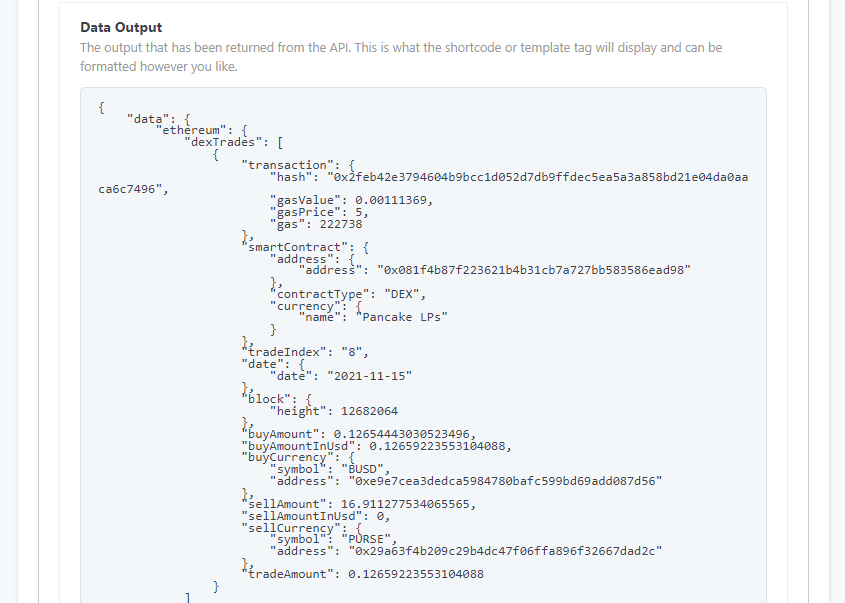
- A shortcode will be automatically generated for the output to be used in your Wordpress site
[wpgetapi_endpoint api_id='bitquery_v1' endpoint_id='v1' debug='false']