Filing Data into Google BigQuery
In this part, we'll demonstrate how to set up Google BigQuery to store data from Google Pub/Sub. The incoming data will be stored in a BigQuery table called newtrades. We'll go step-by-step, covering table creation, schema definition, and configuring Pub/Sub to write directly to BigQuery.
For managed datasets in BigQuery and Snowflake, see the Blockchain Data Warehouse product page.
1. Create a Table and Define the Schema
Create a Dataset
- Navigate to the Google Cloud Console.
- Go to BigQuery and create a dataset (e.g.,
trade_data).- Dataset ID:
trade_data - Data Location: Choose your preferred region.
- Default Table Expiration: Leave it as the default or customize it.
- Dataset ID:
Create a Table
- Inside the
trade_datadataset, create a table callednewtrades. - Define the schema for the
newtradestable. Below is an example schema that aligns with the Pumpfun DEX trade data:
| Field Name | Type |
|---|---|
| protocol_family | STRING |
| protocol_name | STRING |
| buy_amount | FLOAT |
| buy_account | STRING |
| sell_amount | FLOAT |
| sell_account | STRING |
| transaction_signature | STRING |
- Click Create Table.
2. Configure Access for Pub/Sub Service Accounts
To enable Pub/Sub to write data into BigQuery:
-
Locate the Pub/Sub Service Account:
- Go to the IAM & Admin > Service Accounts page in Google Cloud Console.
- Locate the service account associated with your Pub/Sub topic or subscription.
-
Grant BigQuery Permissions:
- Assign the
BigQuery Data Editorrole to the Pub/Sub service account. This grants the service account permission to insert data into BigQuery tables.
- Assign the
3. Create a Subscriber on the Topic
To ensure that Pub/Sub sends data to BigQuery:
-
Go to the Pub/Sub Console:
- Navigate to your Pub/Sub topic (
bitquery-data-stream).
- Navigate to your Pub/Sub topic (
-
Create a Subscription:
- Click Create Subscription.
- Set the following options:
- Subscription ID:
pubsub-to-bigquery - Delivery Type: Write to BigQuery
- BigQuery Table: Select the
newtradestable in thetrade_datadataset.
- Subscription ID:
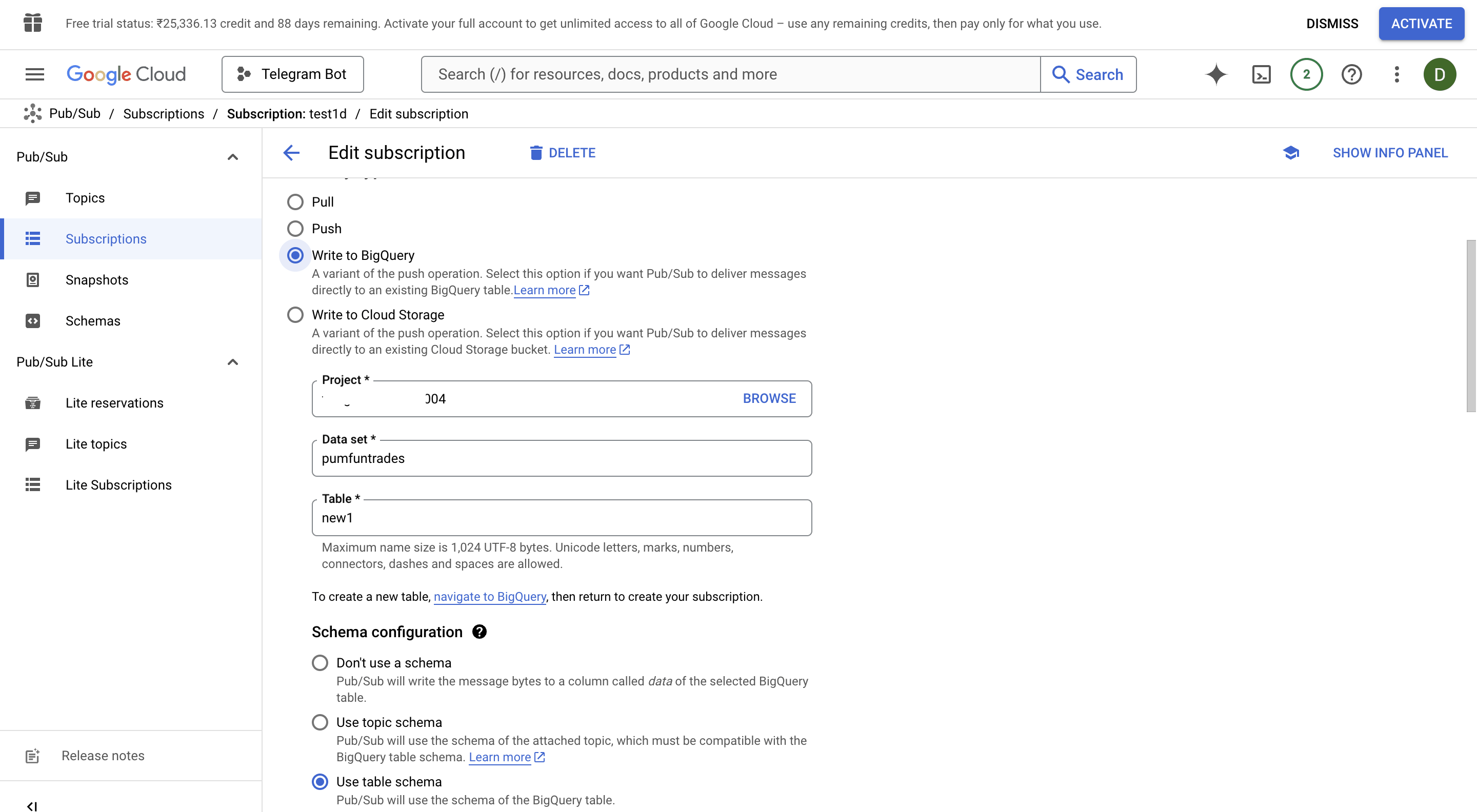
- Click Create.
4. Verify BigQuery Integration
- Test Pub/Sub to BigQuery Flow:
- Run the Python script from Part 1 to publish test messages to Pub/Sub.
python bitquery_pubsub.py
- Verify that the data appears in the
newtradestable in BigQuery.
5. Debugging Tips
-
Pub/Sub Logs:
- Use the Cloud Logging page to view detailed logs for your Pub/Sub topic and subscription.
-
BigQuery Logs:
- Check the BigQuery audit logs to troubleshoot issues related to table writes or schema mismatches.
-
Schema Validation:
- Ensure that the data being published to Pub/Sub matches the schema defined in BigQuery. Mismatches can cause message delivery failures.
6. Architecture Overview
- Pub/Sub Topic: Receives live data from the Bitquery WebSocket API.
- Pub/Sub Subscription: Configured to write data directly to BigQuery.
- BigQuery Table: Stores the Pumpfun DEX trade data for analytics and reporting.
7. Next Steps
- Build advanced dashboards with tools like Google Data Studio or Looker.
- Use SQL queries to analyze trends in the trade data.
- Automate data pipelines using Google Cloud Dataflow or scheduled BigQuery queries.
ProductUsing this in production? See the Blockchain Data Warehouse page for plans, free trial and enterprise delivery options.
Ready to run this in production?
Get an API key and run these queries in minutes, or talk to us about plans and enterprise delivery.