How to Read the MoneyFlow Chart
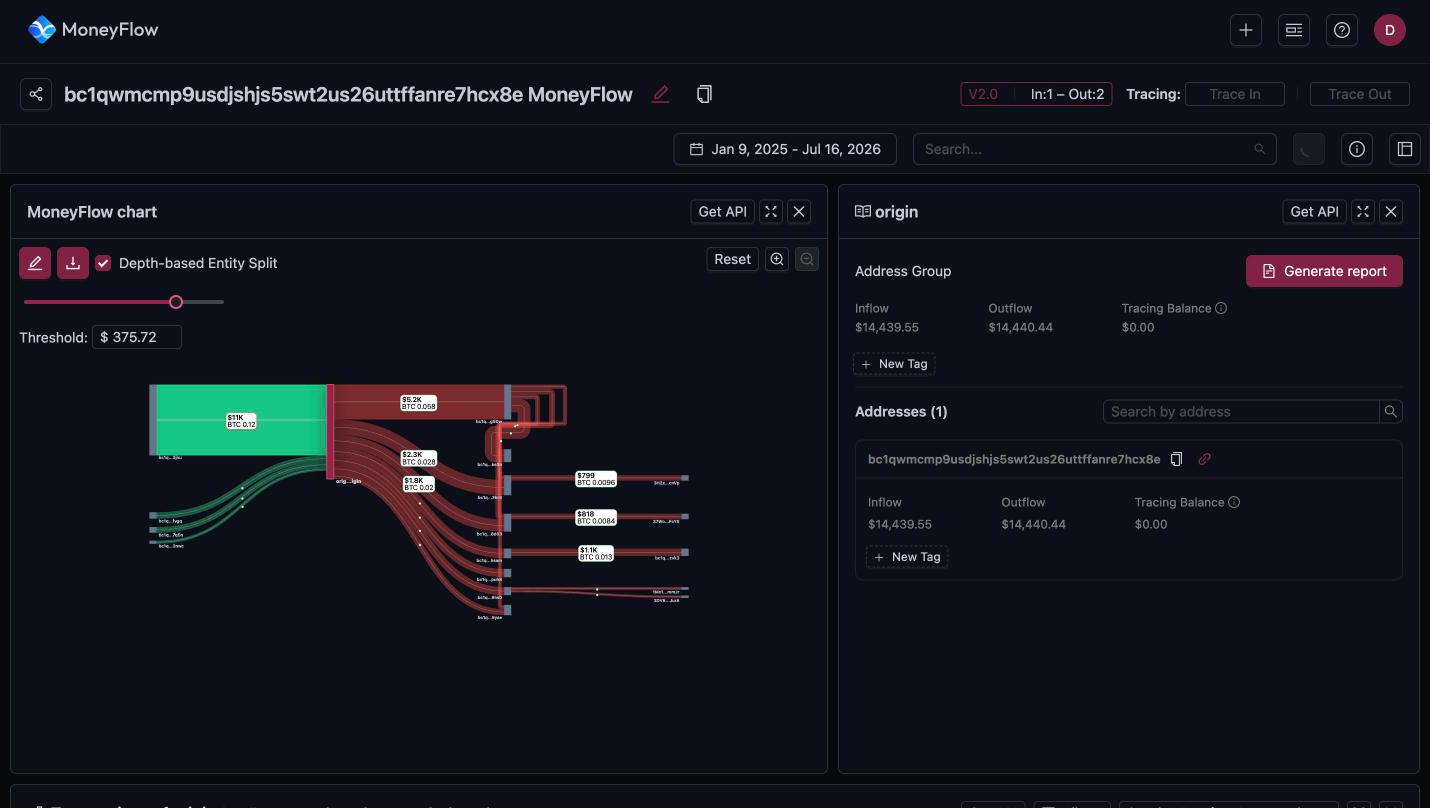
The MoneyFlow chart panel draws the trace as a flow diagram. Funds move from left to right.
Direction
- The origin is the address you entered. It sits in the middle and is labelled
origin. - Everything to the left of the origin is inbound: addresses that sent funds to the origin. Inbound flows are green.
- Everything to the right is outbound: addresses that received funds from the origin. Outbound flows are red.
Nodes
Each vertical bar is a node. A node is one address, or a group of addresses that behave the same way (see Depth-based Entity Split below). The shortened address appears under the bar.
Hover a node to see a summary: In amount, the address, how many addresses the node groups, and Out amount. Click a node to open its address details in the right-hand panel.
Edges
Each band between two nodes is an edge: a transfer, or a set of transfers, from the left node to the right node. The label on the band shows the USD value and the amount in the traced currency, for example $5.2K / BTC 0.058.
The width of a band is proportional to the amount. Wide bands are large transfers. Thin lines are small transfers.
Click an edge to open edge details and the transactions behind it.
Depth
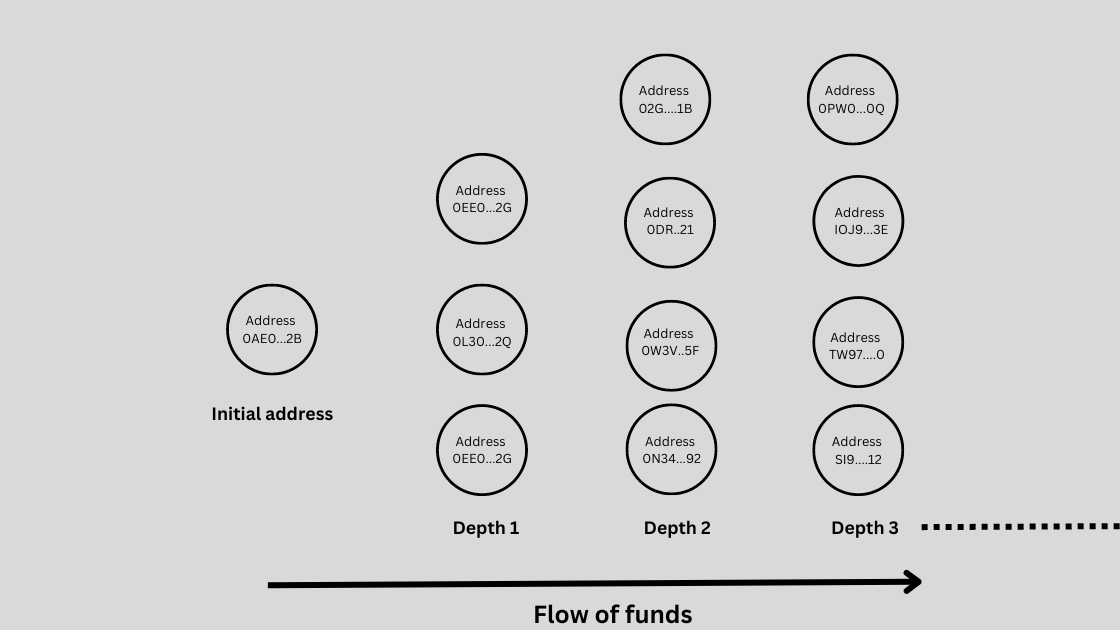
Each column of nodes is one depth level, or hop, away from the origin.
in-1is an address that sent directly to the origin.out-1is an address that received directly from the origin.out-2received from anout-1address, and so on.
The trace starts with one level on each side. Trace In and Trace Out add levels. The current depth is shown in the badge next to the version number, for example In:1 – Out:2.
Threshold slider
The slider and the Threshold box above the chart hide small flows. Only edges at or above the USD value in the box are drawn. Drag the slider or type a value to declutter a busy chart. The threshold only affects the drawing. The transactions table and the trace itself keep every transfer.
Depth-based Entity Split
With Depth-based Entity Split checked, addresses at the same depth that show the same transfer behaviour are merged into one node. The node then represents an address group. The address details panel lists every address in the group.
Uncheck it to show every address as its own node.
Zoom, reset and full screen
- + and - zoom the chart. You can also scroll inside the chart.
- Reset returns to the default zoom and position and clears any search highlight.
- The expand icon in the panel header opens the chart in full screen.
- The download icon in the chart toolbar exports the chart.
Search
The Search box in the toolbar above the panels finds addresses in the trace. Type part of an address or a label to locate it in the chart.
Colours
- Green: inbound.
- Red: outbound.
- Blue highlight: the currently selected node.
Ready to run this in production?
Get an API key and run these queries in minutes, or talk to us about plans and enterprise delivery.