Share and Manage MoneyFlows
Share a MoneyFlow
Click the share icon to the left of the title. The Share dialog explains that it creates a public link anyone can open. Only the MoneyFlow data is shared, nothing else from your account.
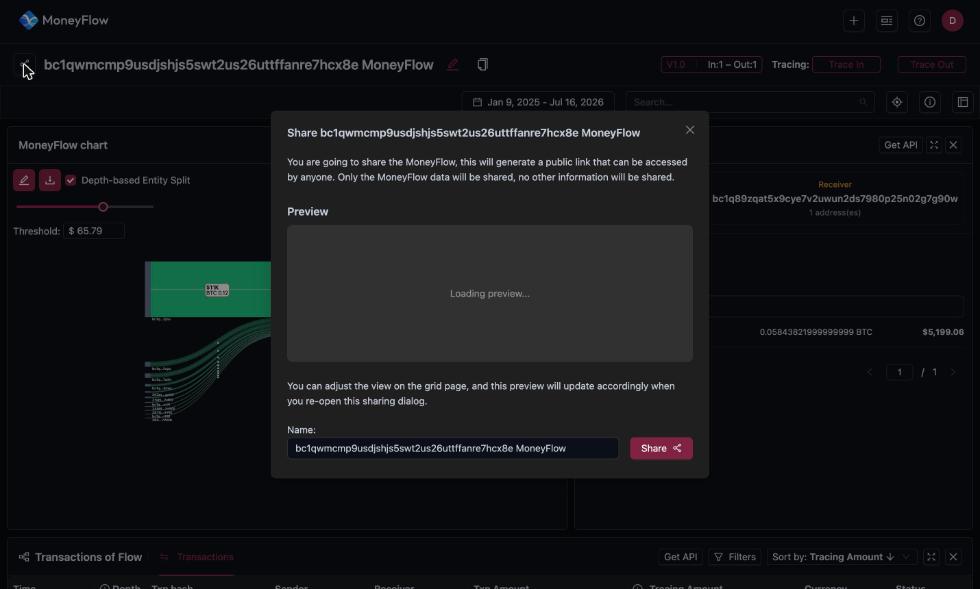
- Check the preview.
- Edit the Name if you want the shared page to carry a different title.
- Click Share and copy the link.
Shared MoneyFlows show a link icon in the Shared column of the MoneyFlows list.
Trace summary
The i icon in the toolbar opens a summary of the current MoneyFlow:
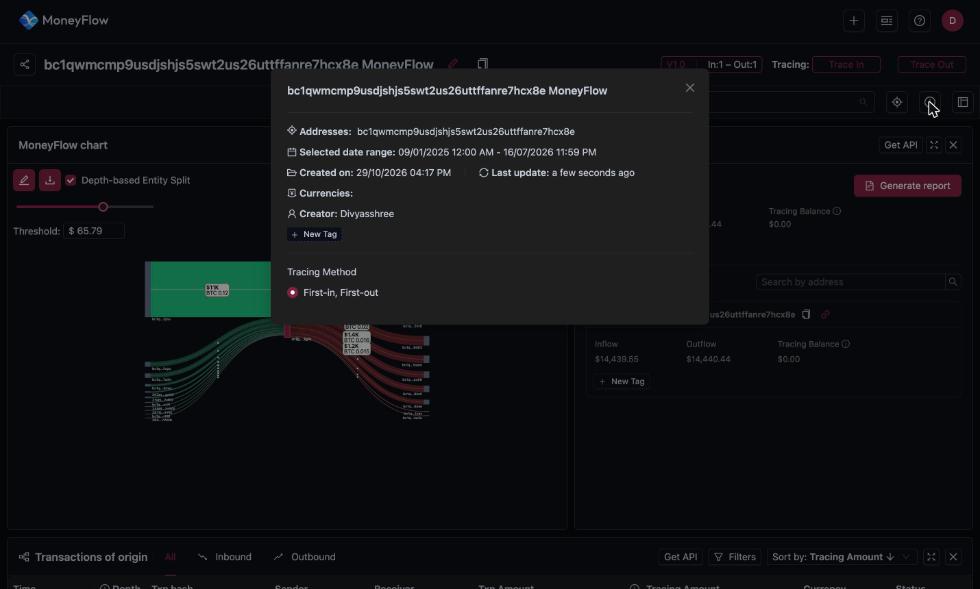
- Addresses: the origin address.
- Selected date range.
- Created on and Last update.
- Currencies traced.
- Creator: the account that created it.
- Tracing Method, for example First-in, First-out.
New Tag here tags the whole MoneyFlow.
Change the date range
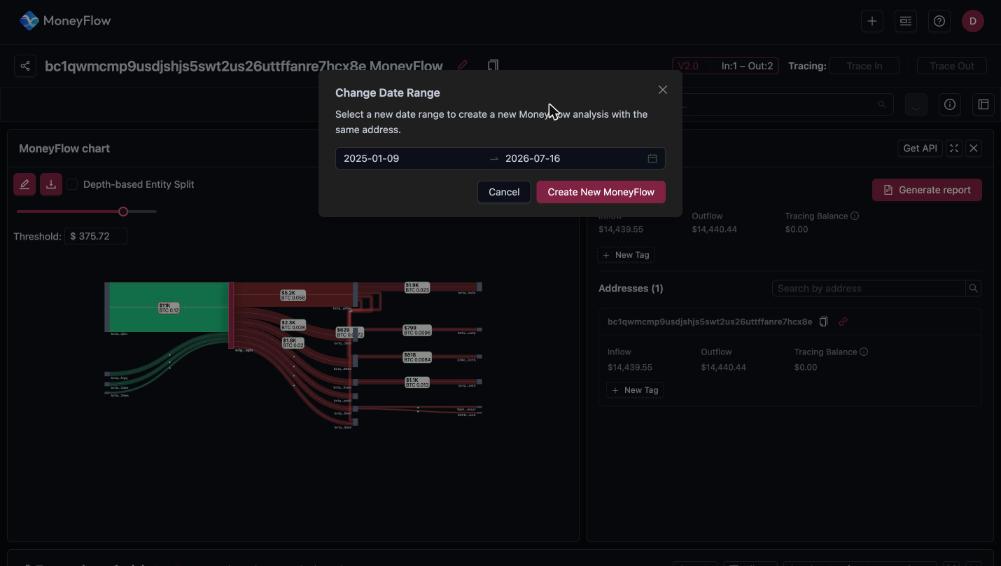
The calendar button in the toolbar opens Change Date Range. Pick a new start and end and click Create New MoneyFlow. The app creates a separate MoneyFlow for the same address with the new range. The original is kept.
Panel layout
The layout icon at the right end of the toolbar opens the Layout panel.
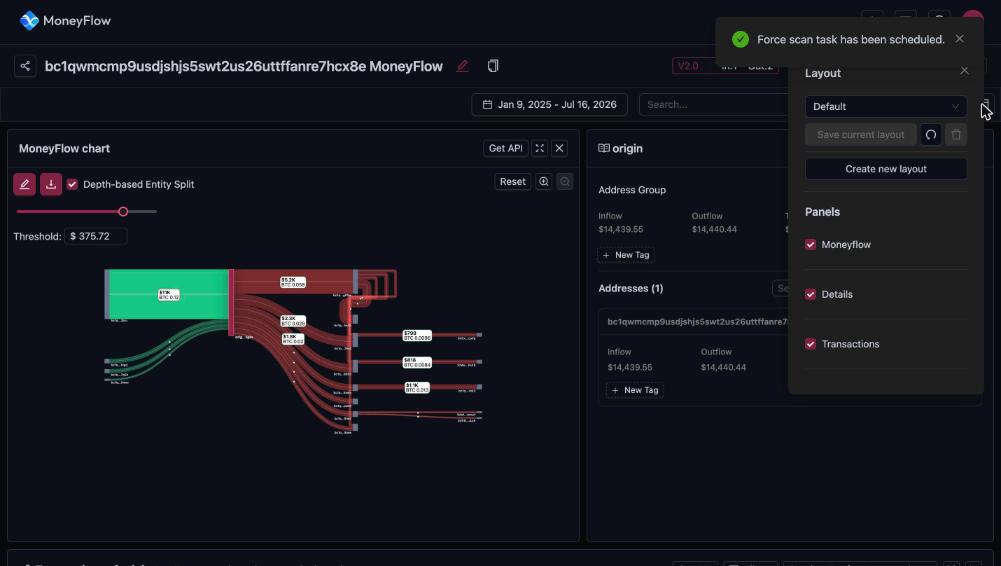
- Panels: show or hide Moneyflow (the chart), Details (the address or edge panel) and Transactions.
- Each panel also has an expand icon for full screen and an x to close it.
- Save current layout stores the arrangement. Create new layout saves it under a name so you can switch between layouts.
MoneyFlows list
The list icon in the top bar opens the MoneyFlows page, which lists every trace saved under your account.
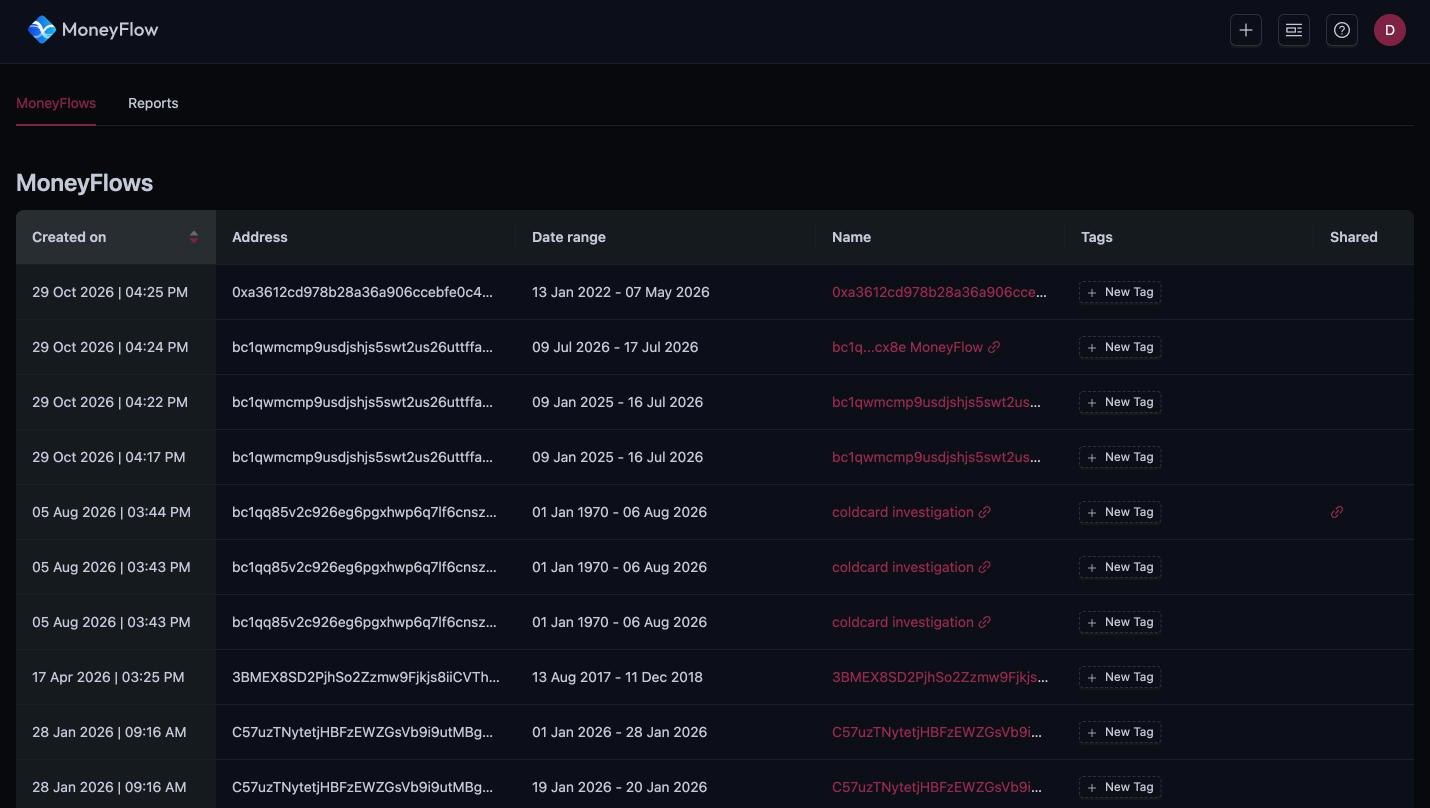
| Column | Meaning |
|---|---|
| Created on | Creation time. Click the header to sort. |
| Address | Origin address. |
| Date range | Range used for the trace. |
| Name | Title. Click it to open the MoneyFlow. |
| Tags | Your tags, with New Tag to add one. |
| Shared | A link icon when a public link exists. |
Reports
The Reports tab on the same page lists the reports created with Generate report in an address panel. Each row has the creation time, the document and its Status. Download the report from here once it is ready.
Get API
Every panel has a Get API button that opens the Coinpath® query behind it in the Bitquery IDE. See Get API.
Account menu
The avatar in the top-right corner shows your email and offers:
- Account Settings: opens account.bitquery.io.
- Theme: system, light or dark.
- Logout.
The ? icon next to the avatar opens the Bitquery support form.
Ready to run this in production?
Get an API key and run these queries in minutes, or talk to us about plans and enterprise delivery.