Transactions Table
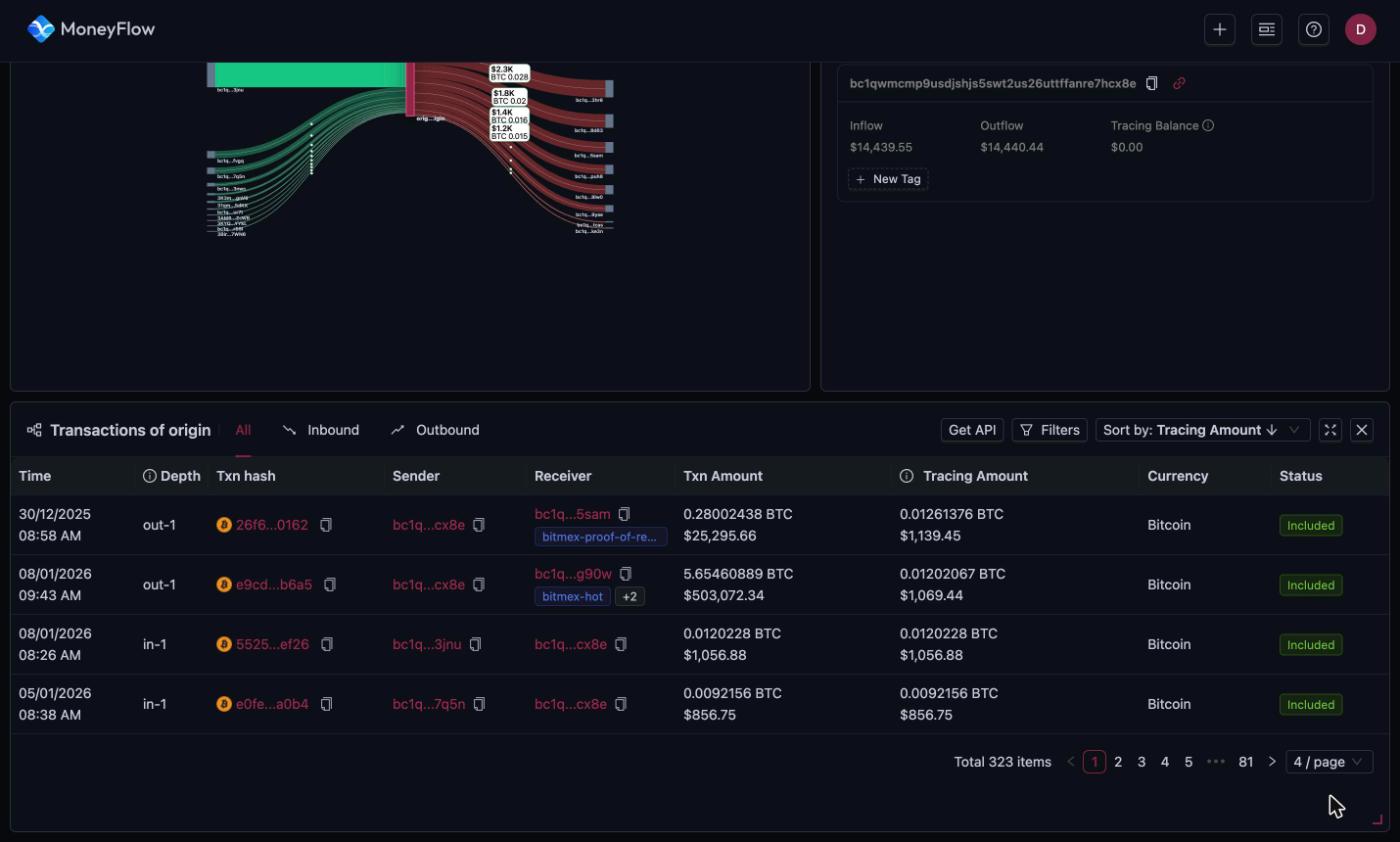
The table at the bottom of the trace page lists the transfers behind the chart. Its title tells you what it is scoped to:
- Transactions of origin when nothing is selected.
- Transactions of <address> when a node is selected.
- Transactions of Flow when an edge is selected.
Tabs
All, Inbound and Outbound switch between every transfer, transfers received by the selected node, and transfers sent by it.
Columns
| Column | Meaning |
|---|---|
| Time | Block time of the transaction. |
| Depth | Position relative to the origin. in-1 sent directly to the origin. out-1 received directly from the origin. |
| Txn hash | Shortened transaction hash with a copy icon. Click it to open the transaction in the Bitquery Explorer. |
| Sender | Shortened sender address with a copy icon and any address labels. |
| Receiver | Shortened receiver address with a copy icon and any address labels. |
| Txn Amount | Full amount of the transaction in the traced currency and in USD. |
| Tracing Amount | The part of the transaction that belongs to the origin's funds, in the traced currency and in USD. |
| Currency | The traced currency. |
| Status | Included or Excluded. Excluded transfers are not counted in the chart. |
Transaction amount versus tracing amount
At depth 1 the two amounts are usually equal. Deeper in the trace they diverge. If the origin sends 0.012 BTC to an exchange hot wallet, and that wallet later sweeps 59 BTC onward, the sweep has a Txn Amount of 59 BTC and a Tracing Amount of 0.012 BTC. Only the traced part is drawn in the chart.
Address labels in the table
Known addresses show a label under the shortened address, for example bitmex-proof-of-reserves. A +2 badge means the address has more labels. Hover it to see them all.
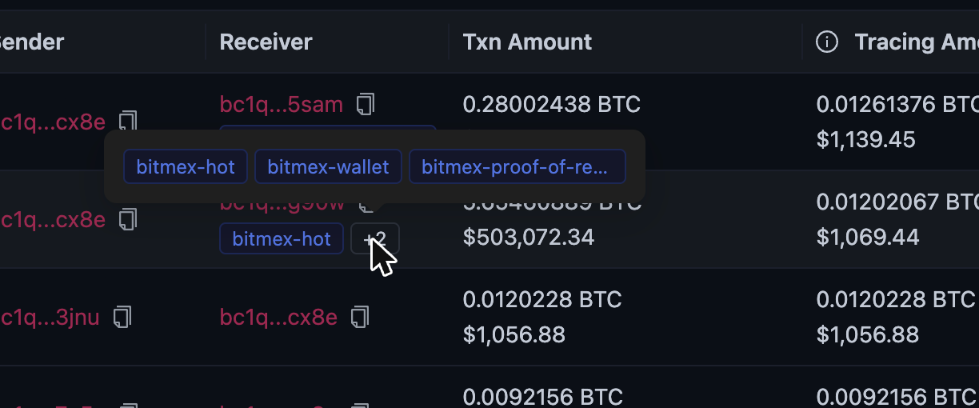
See Address labels and tags for how labels are assigned.
Sort
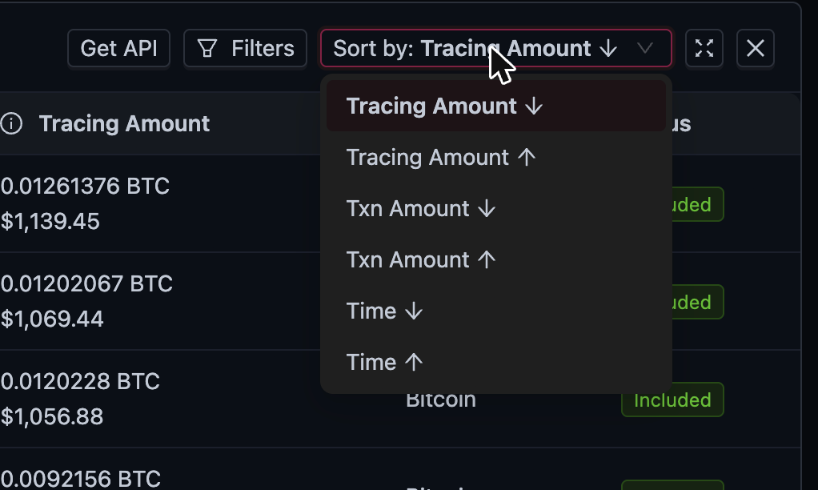
The Sort by dropdown offers:
- Tracing Amount, descending or ascending
- Txn Amount, descending or ascending
- Time, descending or ascending
Filters
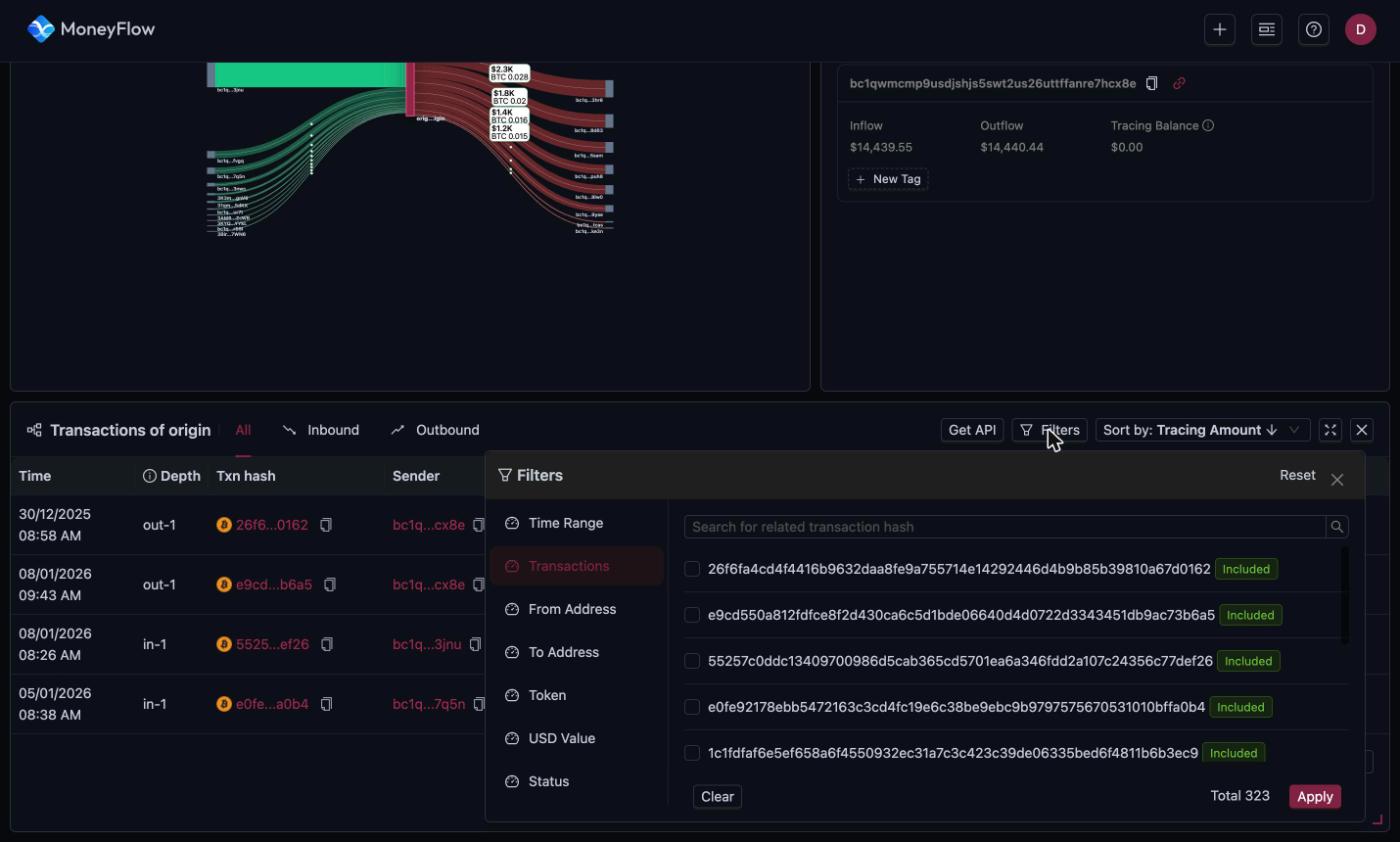
Click Filters to open the filter dialog. The left column lists the filter groups. Set the ones you need and click Apply. Clear resets one group. Reset clears all.
| Filter | What it does |
|---|---|
| Time Range | Quick ranges (Today, Last 7, 14, 30, 90 Days) or a custom start and end date. |
| Transactions | Pick individual transaction hashes. A search box finds a hash. |
| From Address | Pick sender addresses. All or origin shortcuts at the top. |
| To Address | Pick receiver addresses. |
| Token | Pick the currency. On Bitcoin there is one entry, Bitcoin (BTC). On account-based chains the list has every token in the trace, with an A to Z index. |
| USD Value | A From and To range in USD. |
| Status | Included & Excluded, Included only, or Excluded only. |
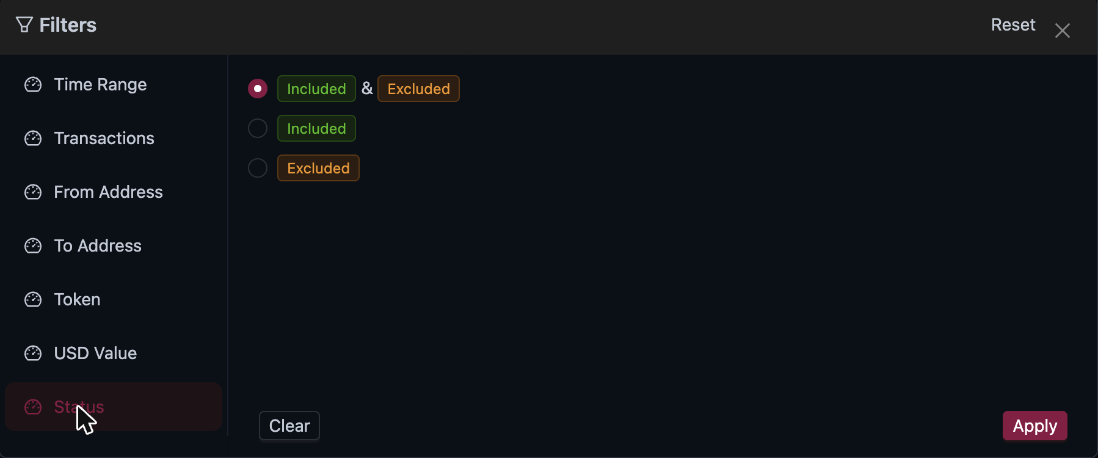
Active filters appear as chips above the table. Click the x on a chip to remove it.
Pagination
The footer shows the total row count and page numbers. The page size selector changes how many rows load at once.
Get API
Get API in the table header opens the Coinpath® query that produced these rows in the Bitquery IDE. See Get API.
Ready to run this in production?
Get an API key and run these queries in minutes, or talk to us about plans and enterprise delivery.